


Tracking & Managing Quotas


Once your study is live, quotas update automatically as participants move through your project.
In this lesson of Quotas & Participant Targeting with User Interviews, you’ll learn:
- How quota progress is calculated
- How to interpret quota visuals
- What happens when quotas are filled or exceeded
📹 Prefer watching to reading? This content is available as both an article and a video. Watch our Senior Product Manager, Claire Mai, take you through the content in the video below or keep reading to dive in!
How quota progress is calculated
Quota progress updates in real time as participants:
- Apply
- Get approved
- Schedule sessions
- Start or complete sessions

Quotas reflect your active pipeline, not just completed sessions. This gives you a forward-looking view of your sample—not just a retrospective one.
How to interpret quota visuals
To view quota progress:
- Go to Participant Management
- Click on “show quotas”
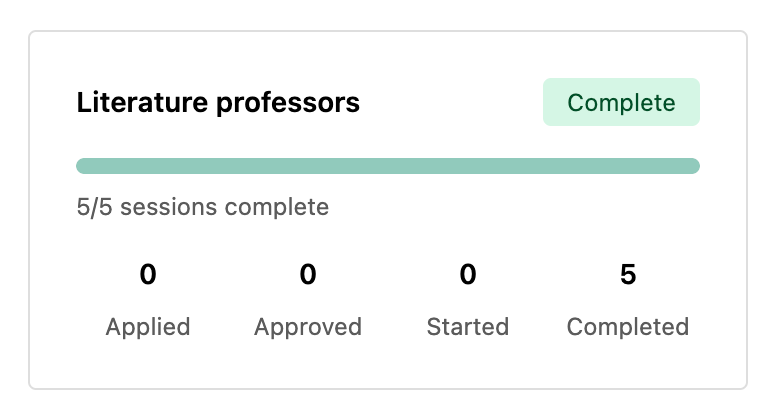
From there, you’ll see counts for each quota (e.g. ⅘ participants), as well as a visual indicator of quota progress. Note that quotas show how many participants currently match each group—not just those who have completed sessions.
What happens when quotas are filled or exceeded
By default, quotas do not restrict participation. That means that, unless quota automations are enabled, participants can still apply, be approved, and schedule, so you may see counts exceed targets.
As a result, you may sometimes see quotas exceed their target (e.g., 6 / 5 participants). This is expected when managing recruitment manually, and this is where quotas help guide your decisions, rather than enforce them.

