

%202.jpg)

Recording & Transcription


High-quality analysis depends on high-quality source material. Recording and transcription in User Interviews is designed to be fast, accurate, and easy to review—so you can focus on learning, not logistics.
In this lesson of the AI Insights & Analysis course, you’ll learn:
- How to turn on auto-recording in User Interviews
- What participants experience during a recorded session
- How to access and download recordings and transcripts
How to turn on auto-recording
In User Interviews, recording works with a recorder bot that joins your Zoom, Google Meet, or Teams call. Once admitted, participants will see a message indicating the session is being recorded. Here’s how to turn on auto-recording in UI:
- Open your project in User Interviews.
- Go to Participant Management, and then to the Scheduled tab.
- Toggle on Auto-Record next to the session you'd like to record, or set all sessions to auto-record via the top Automatic session recording toggle.
How to access recordings, transcripts, and playback tools
User Interviews processes your recordings extremely fast—recordings and transcripts are available within minutes of the meeting ending. After your session ends, you can access recordings in one of three ways:
- Going to the participant’s profile in your project and opening the participant drawer
- Watching the video or reading the transcript under the Transcript tab
- Generating a session analysis under the Session Breakdown tab to speed up the debrief process
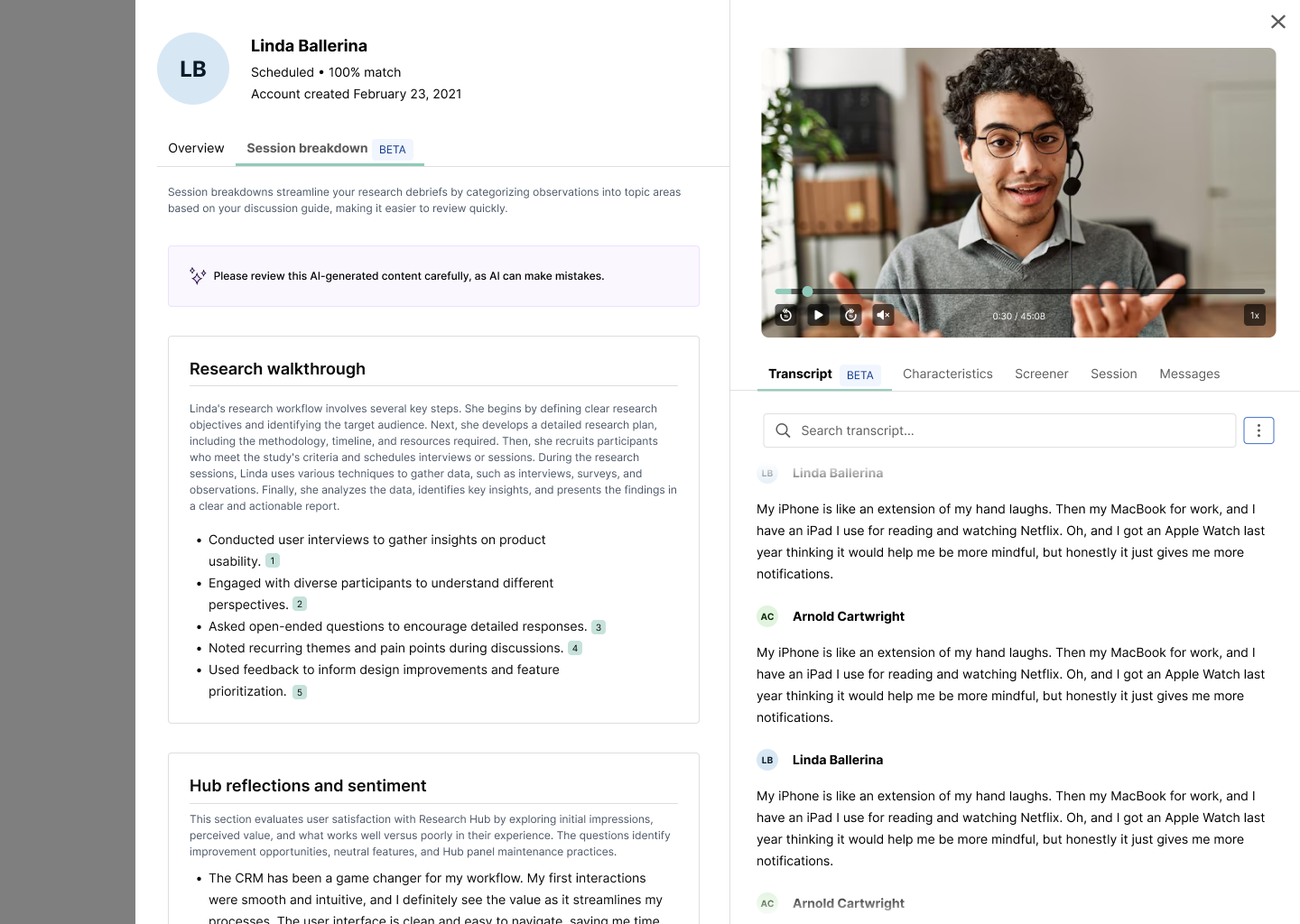
You can use our playback tools to quickly find what you’re looking for:
- Adjust playback speed
- Skip ahead or skip back 15 seconds
- Highlighted transcript synced to video
- Speaker names labeled
- Scroll or jump to specific moments
- Search transcript for keywords
How to download transcripts and recordings
In some cases, you may want to export both video recordings and full transcripts for faster debriefs, verifying insights, or sharing with stakeholders. Recordings and transcripts are securely stored in AWS (US) and only accessible within your project.
To access recordings:
- Open the project and go to Participant Management > Completed.
- Find the completed session you’d like to download. When the session has been recorded and processed, the participant row shows a “View recording” link instead of the “Interview Completed” status.
- Click “View recording.” That takes you to that participant’s Session breakdown tab, where the recording and transcript are shown.
- On that page there’s a kebab menu in the top-right of the transcript/recording area. In the dropdown, you can choose to download the transcript or video.
If you need to delete a recording to meet internal data retention policies or legal compliance requirements, you can do that directly from the participant drawer—no support ticket needed. To delete recordings:
- Open the participant drawer.
- Go to the Transcript tab.
- Click the three-dot menu (⋮).
- Select “Delete recording.”
Deleting removes the video recording, transcript, all session clips, and observations. See it in action below.
Recordings and transcripts form the foundation for AI-assisted analysis. In the next lesson, you’ll see how AI Insights turns those conversations into structured session breakdowns.


Generating Session Breakdowns