

%202.jpg)

Generating Session Breakdowns


Session breakdowns help you review interviews faster by organizing participant responses into topic-based observations—without replaying full sessions or manually tagging transcripts.
In this lesson of our AI Insights & Analysis course, you’ll learn:
- Best practices for creating and uploading your discussion guide
- How session breakdowns are generated
- How to use citations, notes, quotes and clips
Best practices for creating and uploading your discussion guide
The session breakdown speeds up the research review process by categorizing key observations into topic areas based on your discussion guide.
One key concern that folks have with using generic LLMs is that AI will “hallucinate” and make things up. In User Interviews, AI-generated insights are always rooted in source material, so you never have to worry about it making things up. Every observation is cited and links directly to its source quote(s) from the transcript for additional review or context.
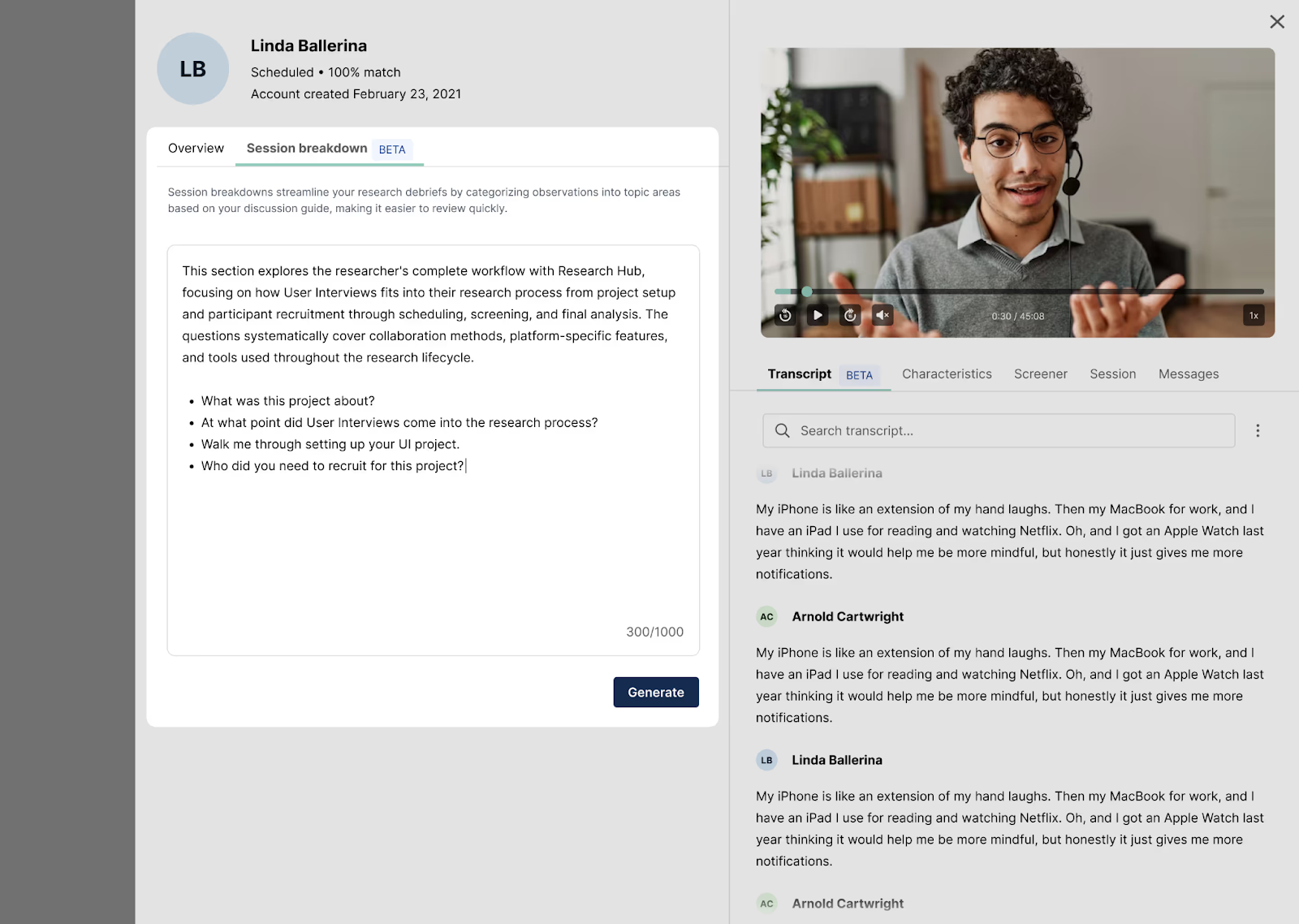
You can upload your discussion guide to any session, and it will apply to all sessions across the project. There are two ways to upload your discussion guide:
1. Via the Analysis Tab:
- Go to the Research Analysis tab of your project and click “Add discussion guide.”
- A form will appear where you can paste your discussion guide.
- Paste your guide into the text area and click “Generate.”
2. Via the Session Breakdown:
- Go to the Participant Management > Completed Sessions section of your project workspace and click open the session you want to analyze.
- Go to the Session Breakdown tab and click “add discussion guide.”
- Simply copy and paste your discussion guide into the textbox, and then click “Generate.”
Coming Soon: In the future, you’ll be able to edit and update your discussion guides even after sessions have been completed. For now, it’s important to use best practices when structuring your discussion guide so the AI Assistant can clearly parse out insights aligned with your goals:
- Use clear, topic-based section headers.
- Group related questions under each topic.
- Avoid overloading the guide with moderator notes.
- Separate logistical notes (introductions, time checks, instructions, etc) from discussion topics.
How session breakdowns are generated
Based on your discussion guide, our AI Assistant will create learning topic areas and organize participant quotes into structured observations, linking every observation directly back to its source quotes.
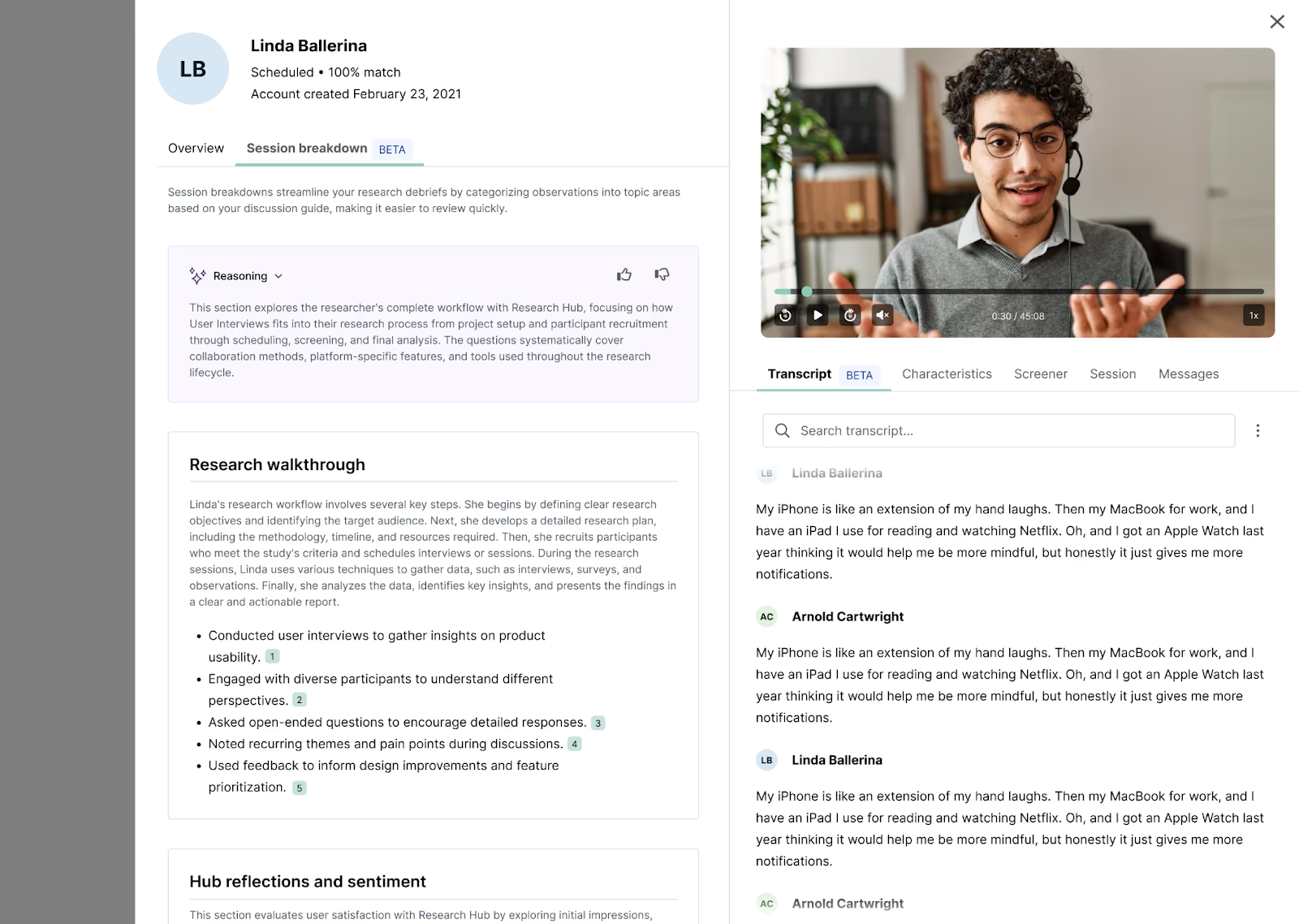
Each observation will include:
- One or more citations
- Clickable links to transcript timestamps
Note that session breakdowns are structured observations, not final insights — use them as a starting point for synthesis, and then apply your research judgment: check the citations to review the context for each observation, and edit, refine, or discard observations as needed.
How to turn observations into sharable insights
From a session breakdown, you can:
- Pull quotes
- Create clips
- Share early learnings
- Copy any observation with one click
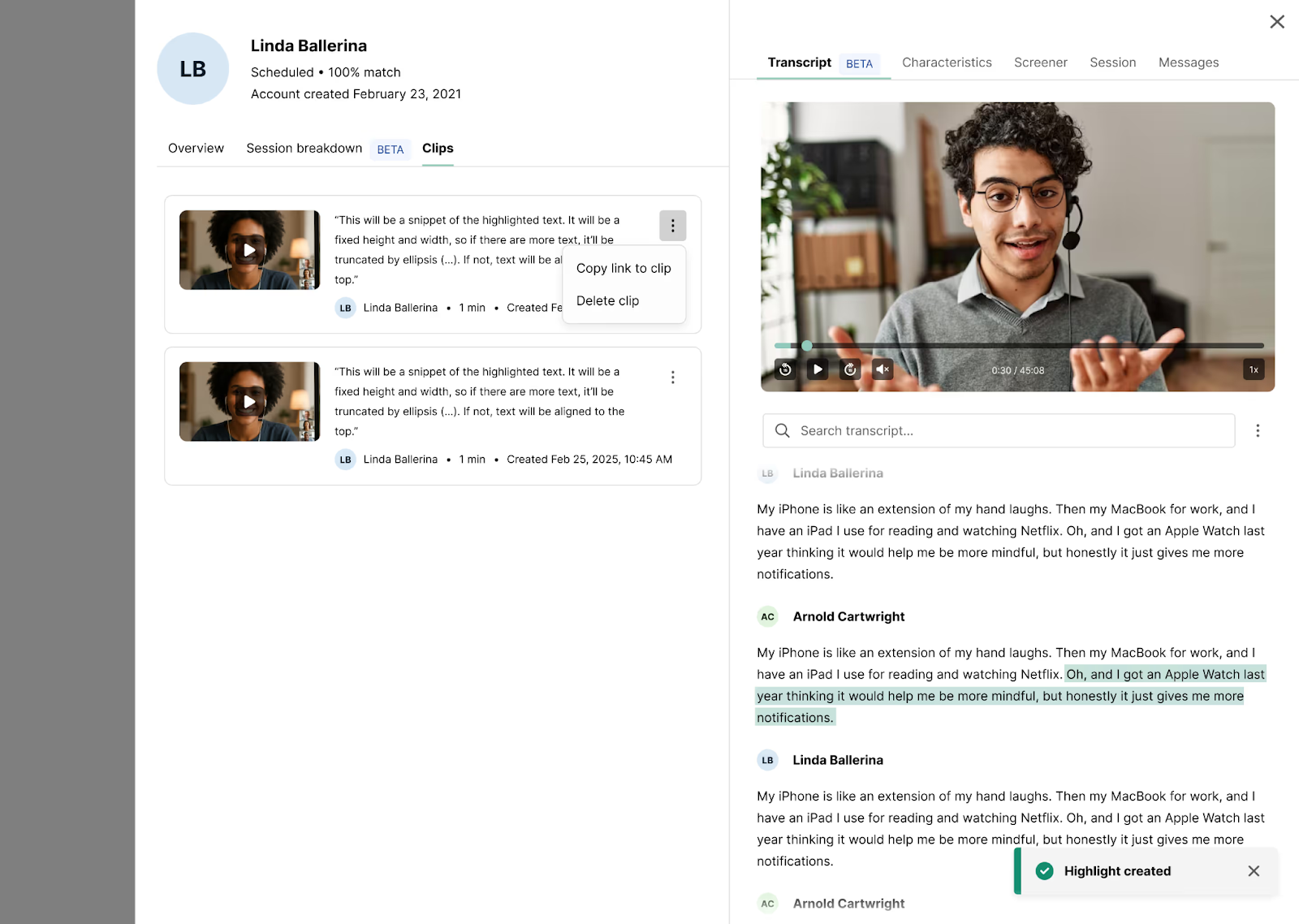
To create a clip, highlight text on the transcript or data grid, click “Clip”, and this will instantly create a saved clip that you can easily reference or share with your team. You can view all your saved clips in the Clips tab. This brings together clips from every participant in one place for easy review.


Analysis with the Data Grid