

%202.jpg)

Setting Up AI Insights in User Interviews


AI Insights helps you spend less time processing and more time thinking. In this lesson of our AI Insights & Analysis Course, we’ll walk you through:
- How to enable AI features
- What session types and tools are supported with AI Assistant
- How to configure auto-recording so nothing gets missed
How to opt-in to enabling AI features
AI features in User Interviews are opt-in at the organization level—that means that only Admins can enable AI features by:
- Going to Organization Settings > Advanced Options.
- Toggling the AI Features button to “Active.”

Once enabled, all team members can access recording, transcription, and AI Insights. If the toggle appears grayed out, you’ll need an admin to enable it.
Supported session types and tools
AI Insights currently supports:
- 1:1 moderated sessions
- Must be integrated and conducted via Zoom, Google Meet, or Microsoft Teams
These integrations ensure accurate speaker labeling and high-quality transcripts. (Note: Webex support is coming soon!)
👩🏫 To learn more about our integrations, check out the Integrations with User Interviews course.
Auto-recording: when and why to enable it
You can enable recording:
- Per session, or
- For all sessions in a project using the Automatic session recording toggle
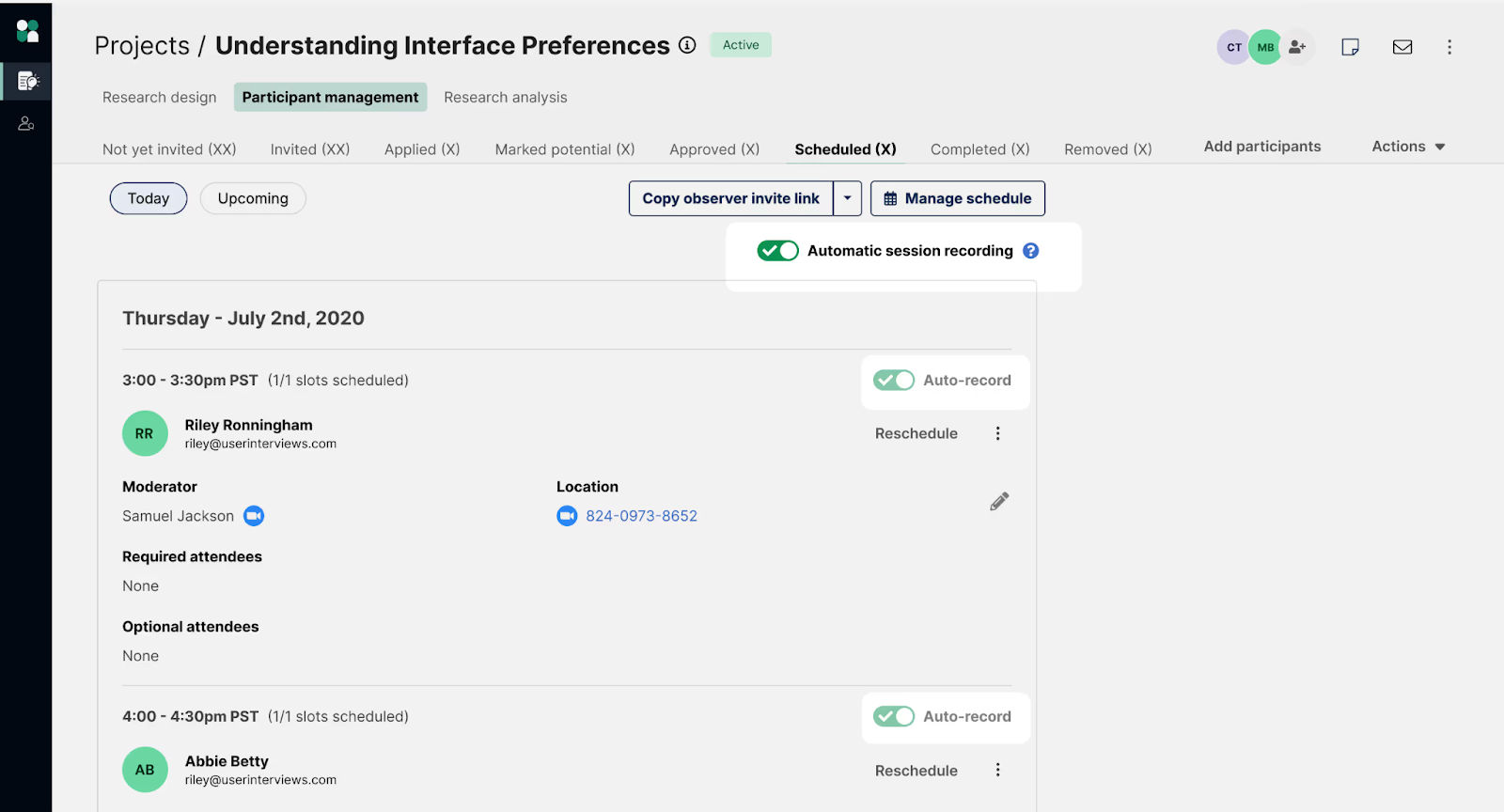
Best practices:
- Enable auto-recording at the project level to ensure consistency
- Make sure the moderator joins the session so the recorder bot can enter
- Let participants know ahead of time that the session will be recorded
💡 If auto-record isn’t enabled in advance, the toggle will change to Start Recording just before the session begins.


Recording & Transcription